User roles
With properties and locations logged to your database, you then need to make sure you have the correct role assigned to your user so that you can access the reports editor on the SmartSpace web site.
Prerequisites
This section assumes that you have completed the steps in Logging to a database.
Adding a user role
Follow along with the steps below to assign the appropriate roles to the user System.Web.ReportAdmin.
-
Select USERS / ROLES in SmartSpace Config.
-
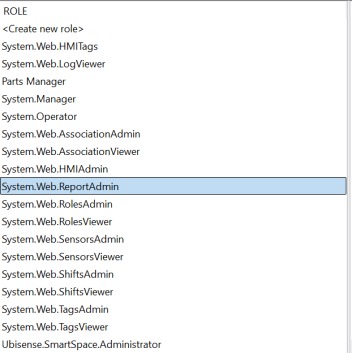
Select System.Web.ReportAdmin from the list of roles.
-
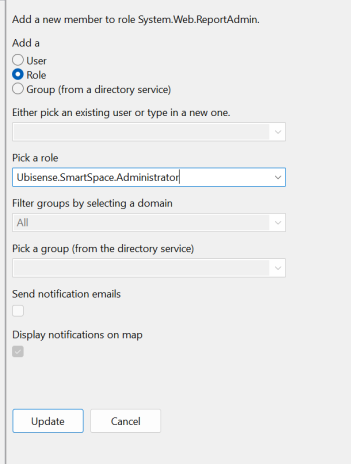
With System.Web.ReportAdmin still selected, under MEMBERS OF ROLE, double-click <Add new member> and add Ubisense.SmartSpace.Administrator.
-
Select Update to save your changes.
Adding background objects to the role
To make sure you can see the background objects in the reports editor, add the Logistics Hall view to the Ubisense.SmartSpace.Administrator role. Follow along with the steps below.
-
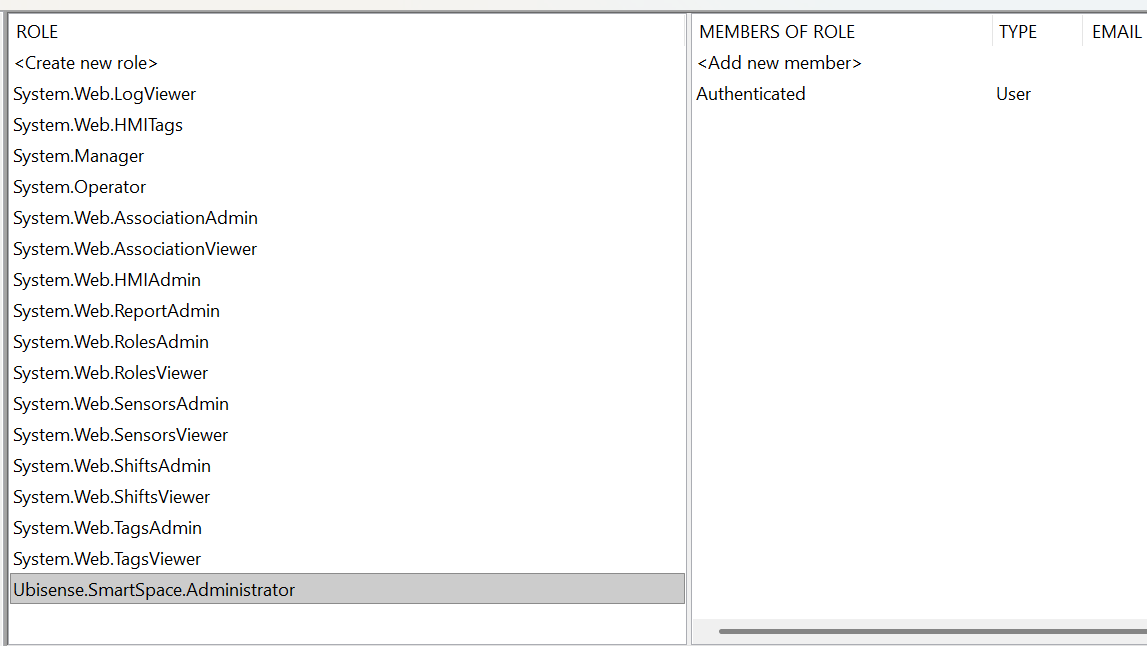
In USERS / ROLES, add the Authenticated user to the role Ubisense.SmartSpace.Administrator.
-
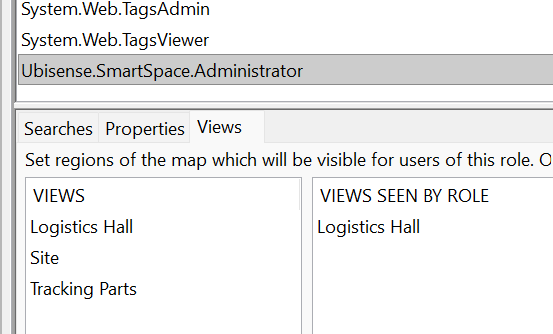
With Ubisense.SmartSpace.Administrator selected, under the Views tab, drag Logistics Hall into the VIEWS SEEN BY ROLE window.
Next steps
Move on to Defining queries to learn how to use the logged properties and locations to create queries that can later be used to present your data.