SmartSpace Map
A standalone map consisting of 3D representations for all located objects
Summary
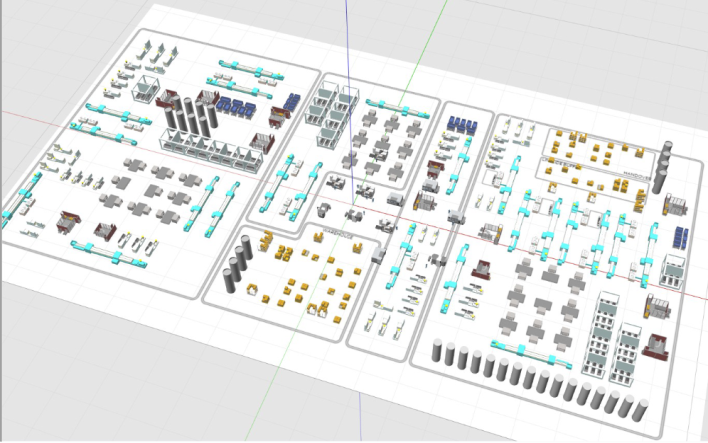
SmartSpace Map is a standalone 3D map of your world model and all its located objects. SmartSpace Map allows you to interact with located objects and provides a list of the selected object's properties. Viewpoints can be configured in SmartSpace Config to allow for quick navigation to predefined areas.
Features
-
Map consisting of 3D representations for all located objects
-
3D navigation support
-
List of named objects that appear on the map, including a type dropdown and text search control
-
Types and objects that do not appear on the map are omitted from the list
-
Anonymous background objects are rendered on the map but are impossible to interact with
-
Single-click object selection
-
Name label for selected objects above the representation on the map
-
Selected objects are highlighted with a ring around the object location aligned with the x-y plane
-
For single object selection, property values are shown in a table, with any inherited property values from the base Object type omitted
-
Check box list of monitored spatial relations, including a “Requested by” dropdown
-
Check box to “follow selected objects”
-
Button to move the camera (eye point) to the selected object
Introduction to SmartSpace Map
SmartSpace Map is a standalone map client that allows you to view your located objects from your world model in 3D. SmartSpace Map is used to view located objects and their properties; any configuration is still carried out in SmartSpace Config.
Installation
The installation process for SmartSpace Map is identical to that of SmartSpace Config. Follow the SmartSpace Installation Guide for more information.
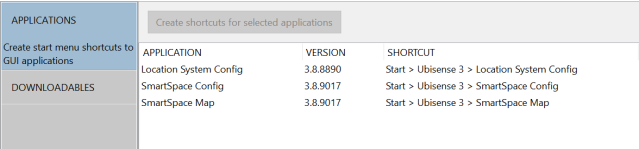
Once SmartSpace is installed (version 3.8 SP5 or higher), SmartSpace Map will be available in Ubisense Application Manager.
SmartSpace Map workspace
The SmartSpace Map workspace allows you to specify which objects you want to see on the map from your world model.
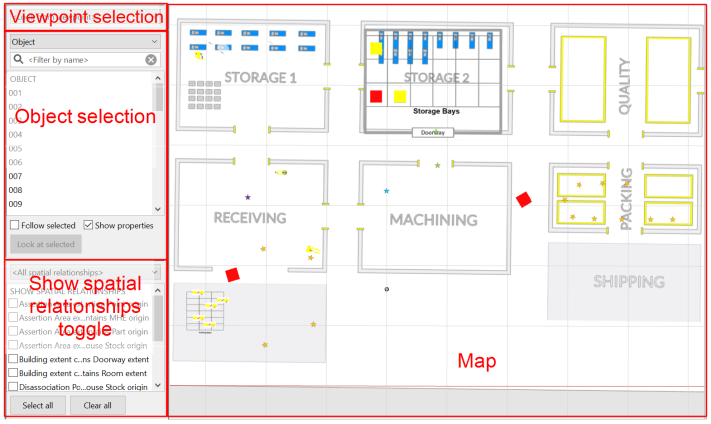
The SmartSpace Map workspace is described in the following sections:
 Map viewer
The map viewer shows a 3D view of your world model.
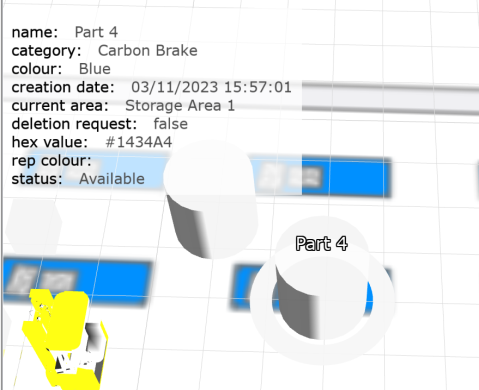
Click on an object to select it. Selected objects are shown with a ring around the object location, as well as an overview of the object's properties (if selected in Object selection). The list of properties displayed for an object can be specified in packages/common/properties.txt (see Specifying the List of Properties).
If your
How to add and edit Ubisense registry entries
The following give instructions on how to add and edit Ubisense registry settings.
Ubisense registry settings are stored under one of:
-
HKEY_LOCAL_MACHINE\SOFTWARE\WOW6432Node\Ubisense 3\Config
-
HKEY_LOCAL_MACHINE\SOFTWARE\WOW6432Node\Ubisense 2.1\Platform\Config
- Start the registry editor. (Click start, type regedit.exe, and press Enter).
- In the tree on the left, from the top, expand HKEY_LOCAL_MACHINE, then expand SOFTWARE, and so on down the tree until you select Config.
-
With the registry editor open and config selected in the tree on the left, the registry settings are displayed in the panel on the right.
- To add a new setting, select the “Edit” menu, select “New” and select “String Value”. A new value will appear in the panel on the right and the value's name is being edited. Enter
- To edit a settings value, select the setting in the panel on the right. Select the “Edit” menu, then select “Modify…”. This will display an editor window where the setting can be edited. Type in the
- To add a new setting, select the “Edit” menu, select “New” and select “String Value”. A new value will appear in the panel on the right and the value's name is being edited. Enter
Viewpoint selection
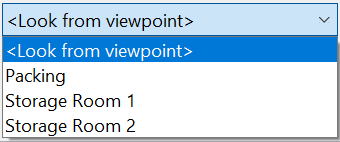
The <Look from viewpoint> dropdown is used to move the camera (eye point) to predefined areas. Viewpoints are configured in SmartSpace Config and immediately appear in the SmartSpace Map once created. See Creating viewpoints for more information. Once a viewpoint has been selected from the dropdown list, the camera will move to the location of the viewpoint.
Object selection
Located objects are listed on the left-hand side of the workspace. Use the dropdown menu to choose which objects you want to see on the map. A filter allows you to limit items listed to those containing a match, or partial match, with the text you input ( clears the filter). You can select an object on the map via the object list, as well as via the map viewer.
Check the Follow selected check box to follow selected objects as they move on the map.
Check the Show properties check box to view the selected object's properties. A list of its properties will appear in the top-left of the map viewer.
Click the Look at selected button to move the camera to the selected object.
Show spatial relationships toggle
All defined spatial relations are listed, with check boxes to toggle them on and off.
Specifying the List of Properties
From version 3.9, you can specify the properties that are displayed when an object is selected. To specify the list of properties, navigate to your SmartSpace distribution directory and:
-
Edit packages/common/properties.txt. For example:
name of 'Part'
rep colour of 'Part'
-
Re-install the SmartSpace Map feature.
SmartSpace Map will now display only the properties listed in properties.txt.
Creating viewpoints
Viewpoints are created and configured in SmartSpace Config. Follow the steps to create viewpoints that can be used in SmartSpace Map:
-
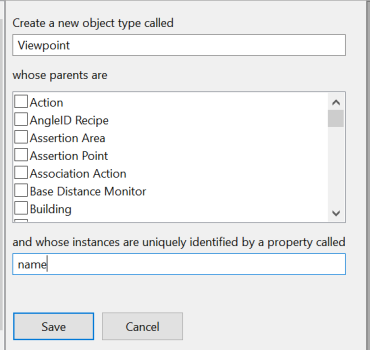
Create a new Type called Viewpoint.
-
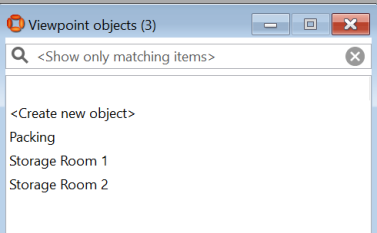
Create objects of type Viewpoint with names that relate to the views you would like to configure, such as "Storage Room", for example.
-
Assign a representation to the type Viewpoint.
-
In OBJECT PLACEMENT, locate and select the viewpoint object in the list and then select Place object at the camera position at a camera position that corresponds to its name.
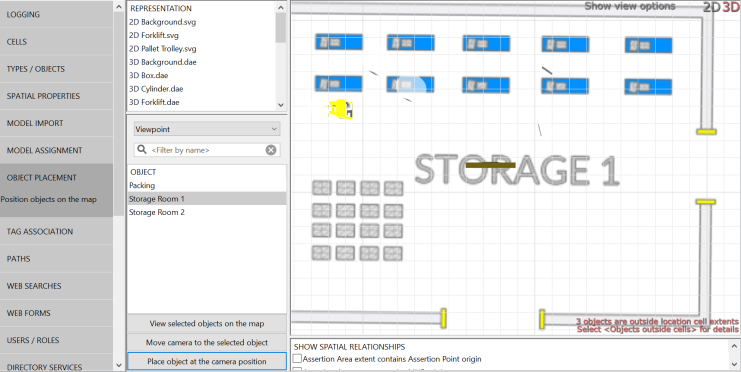 In this SmartSpace 3.8 SP5 preview of SmartSpace Map, it is safe to ignore warnings about objects outside cell extents.
 -
In MODEL ASSIGNMENT, uncheck the Show in 3D check box so the viewpoint objects are not visible in SmartSpace Map.
Once viewpoints have been configured, they will be available to select in SmartSpace Map.